Sunday, January 19, 2014

OpenVPN server on CentOS 6.4 behind NAT

This tutorial describes that how to configure the OpenVPN Server in CentOS 6.4 and clients in Windows XP/7.

I am taking the scenario of SOHO network, which is protected by Firewall, we’ll implement the OpenVPN on internal CentOS 6.4 server to access the internal SOHO network (Server and PCs) through the internet from anywhere securely.

openvpn

Before starting this tutorial, we need to install the RPMforge and EPEL repositories:

RPMforge Installation:
wget http://packages.sw.be/rpmforge-release/rpmforge-release-0.5.2-2.el6.rf.x86_64.rpm
rpm --import http://apt.sw.be/RPM-GPG-KEY.dag.txt
rpm -K rpmforge-release-0.5.2-2.el6.rf.*.rpm
rpm -i rpmforge-release-0.5.2-2.el6.rf.*.rpm
yum repolist

EPEL Installation:
wget http://ftp.riken.jp/Linux/fedora/epel/RPM-GPG-KEY-EPEL-6
wget http://dl.fedoraproject.org/pub/epel/6/x86_64/epel-release-6-8.noarch.rpm
rpm --import RPM-GPG-KEY-EPEL-6
rpm -ivh epel-release-6-8.noarch.rpm
yum repolist

OpenVPN Server Installation:

Install the openvpn package using the following command:
yum install openvpn easy-rsa

1

Make the openvpn service to start automatically on boot:
chkconfig openvpn on

1a

Make an easy-rsa/keys directory inside /etc/openvpn:
mkdir -p /etc/openvpn/easy-rsa/keys

2

Copy the default easy-rsa into /etc/openvpn for setting up Certificate Authority (CA), certificates and keys generation for OpenVPN server and clients:
cp -rf /usr/share/easy-rsa/2.0/* /etc/openvpn/easy-rsa

3

Edit /etc/openvpn/easy-rsa/vars:
cd /etc/openvpn/easy-rsa/
vi vars

4

Edit these parameters according to your need:
export KEY_COUNTRY="US"
export KEY_PROVINCE="NC"
export KEY_CITY="Winston-Salem"
export KEY_ORG="Example Company"
export KEY_EMAIL="me@example.com"

5

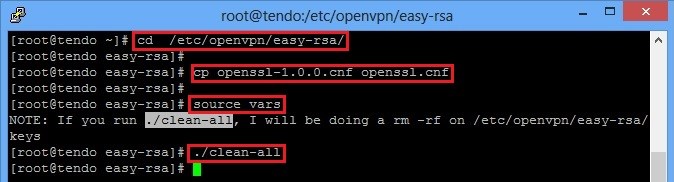
Move to the /etc/openvpn/easy-rsa/ and enter these commands:
cd /etc/openvpn/easy-rsa/
cp openssl-1.0.0.cnf openssl.cnf
source vars
./clean-all
6

Now, generate the CA certificate and key:
./build-ca

7

Next, generate a server certificate and private key:
./build-key-server tendo

8Note: tendo is my server name in above command, you can use your server name here.

For OpenVPN server,Diffie Hellman parameters are must:
./build-dh

9

Copy all the certificates and keys into /etc/openvpn/ from /etc/openvpn/easy-rsa/key/ subdirecotory:
cd keys/
cp ca.crt tendo.crt tendo.key dh1024.pem /etc/openvpn/

10

Create a /etc/openvpn/server.conf file and enter the certificates and keys information that we have created above:
vi /etc/openvpn/server.conf

11

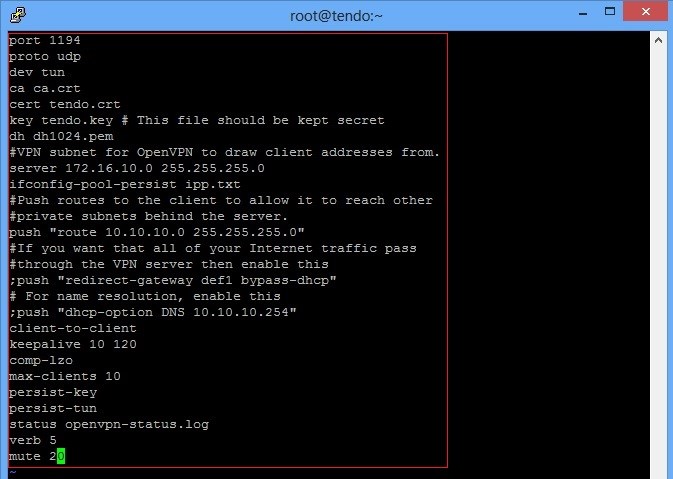
Here is my server.conf file as an example, you can change it according to your requirement:
port 1194
proto udp
dev tun
ca ca.crt
cert tendo.crt
key tendo.key # This file should be kept secret
dh dh1024.pem
#VPN subnet for OpenVPN to draw client addresses from.
server 172.16.10.0 255.255.255.0
ifconfig-pool-persist ipp.txt
#Push routes to the client to allow it to reach other
#private subnets behind the server.
push "route 10.10.10.0 255.255.255.0"
#If you want that all of your Internet traffic pass
#through the VPN server then enable this
;push "redirect-gateway def1 bypass-dhcp"
# For name resolution, enable this
;push "dhcp-option DNS 10.10.10.254"
client-to-client
keepalive 10 120
comp-lzo
max-clients 10
persist-key
persist-tun
status openvpn-status.log
verb 5
mute 20
12

Now, start the OpenVPN server:
service openvpn start

13Note: Forward udp port 1194 to your internal OpenVPN server on edge firewall.
Client Certificates:

VPN client also need a certificate to authenticate itself to the server. Using the root user, create the different certificate for each client:
cd /etc/openvpn/easy-rsa/
./build-key rblaptop

14Note: rblaptop is my vpn client name in above command, you can use your client name here.

Copy these files to the client machine using winscp or any other method:
1) /etc/openvpn/ca.crt
2) /etc/openvpn/easy-rsa/keys/rblaptop.crt
3) /etc/openvpn/easy-rsa/keys/rblaptop.key

Your files name will be differ, so adjust them as per your need.
OpenVPN Client Configuration on Windows Machine:

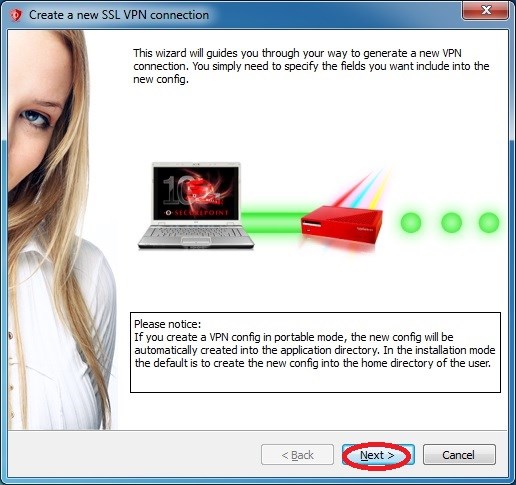
Download free OpenVPN client for windows from here, and install it. Below is the step by step procedure to configure this OpenVPN client in order to connect to the OpenVPN server that we have configured above:

1

2

3

4

5

6

7

8

9

10

11

Check the routing table on client machine:
netstat -r

12

Ping to the OpenVPN internal ip:

13

For internal host, the ping will be failed because internal host doesn’t know about this vpn pool. To overcome this problem, we need to configure NAT on OpenVPN server:

Edit the /etc/sysctl.conf file:
vi /etc/sysctl.conf

15

Enable IP forwarding by changing “net.ipv4.ip_forward” line to 1:
net.ipv4.ip_forward=1

16

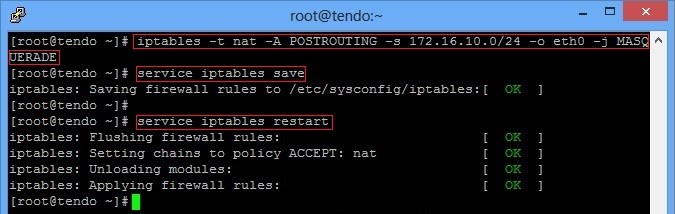
Create an iptables rule to allow the proper routing of VPN subnet.
iptables -t nat -A POSTROUTING -s 172.16.10.0/24 -o eth0 -j MASQUERADE
service iptables save
service iptables restart
17

Reboot the server or issue this command to load the change:
sysctl -p

Ping to the internal host again:

14

Success 
Hope this will help you!

Please Remember me in your prayers

Thursday, November 14, 2013

How to compile JW Player from source code using Adobe Flash CS

To compile JWPlayer, you need two things:
1. Flash CS4 (or CS5)
2. Flex SDK v4 (hoặc v3)

You can download it at:


3. Download Source Code of JW Player at:


Choose the lastest version, download and unpzip to your folder. For example, I'm using JWPlayer5
Now open Flash CS4, Creat New choose Flash File (ActionScript 3.0)


Click Ctrl + S , name file (ex. player.fla) and save it at C:JWPlayer5SRC (must be SRC)


Go to Properties, at tab Publish, copy and paste below code to Class:

com.longtailvideo.jwplayer.player.Player

Below Tab Properties, at Stage you can choose color of default background for  JW Player, I choose white color (#000000)

Ctrl + U to show Preferences, Choose ActionScript, click ActionScripts 3.0 Settings


At Flex SDK path, find to directory Flex SDK v4.

Click OK twice.

Hold Ctrl + Shift + F12 (or FilePublish Settings) to show Publish Settings
click Tab Flash, click Settings at Script : ActionScript 3.0


Settings, you choose tab Library path, clear all and  +. Copy and paste below line:
$(FlexSDK)/frameworks/libs


Click+ , choose Library of JWPlayer: C:JWplayer5libs


Click OK to save and return to Public Settings:

Clcik Publish to compile. Go to  C:JWplayer5src and you get jwplayer swf:


That's all.

Saturday, October 19, 2013

Backup to Amazon S3 Bucket from CentOS 6.4

In this tutorial I’ll make mysql db backup and then upload it to AMAZON S3 Bucket using S3CMD tool and bash script. The script will also create the separate folder automatically for each day inside the bucket.

Before starting this tutorial, we need to install the EPEL for s3cmd tools:
wget http://ftp.riken.jp/Linux/fedora/epel/RPM-GPG-KEY-EPEL-6 
wget http://dl.fedoraproject.org/pub/epel/6/x86_64/epel-release-6-8.noarch.rpm
rpm --import RPM-GPG-KEY-EPEL-6
rpm -ivh epel-release-6-8.noarch.rpm
yum repolist

Switch to the root user:
sudo su -

1

Install the s3cmd tools:
yum install s3cmd

2

After installation, run the following command in order to configure the s3cmd tools using your AMAZON ACCESS KEY and SECRET KEY.
s3cmd --configure

3

It is always a good practice to create a separate scripts directory:
mkdir /script
cd /script
nano mysqlbackuptos3.sh

4

Paste the below code into the script (Please modify the following script to suit your purposes):
#!/bin/bash
#############################################################
# Created by: Thoai Nguyen (thoai.nguyenanh{at}gmail(dot)com) #
#                                                           #                                                                                                #
#############################################################
## Specify the name of the database that you want to backup
DATABASE="tendodb"

## USERNAME and PASSWORD to take the backup
USER="arbab"
PASSWORD="PASSWORD"
## Defination of some necessary variables
S3_BUCKET=tendodbbackup
DATE=`date +%A-"(%d.%m.%Y)".%H`
BACKUP_LOC=/tmp/backups
S3BDIR=`date +%d.%A-"(%d.%m.%Y)"`
mysql_backup(){
/usr/bin/mysqldump -u $USER -p$PASSWORD --databases $DATABASE | gzip -9 > $BACKUP_LOC/tendodb_$DATE.sql.gz
s3cmd ls s3://$S3_BUCKET/$S3BDIR > /tmp/log.txt
grep -lr "$S3BDIR" /tmp/log.txt
if [ $? -ne 0 ]
then
mkdir /tmp/$S3BDIR
s3cmd put -r /tmp/$S3BDIR s3://$S3_BUCKET/
s3cmd sync -r $BACKUP_LOC/ s3://$S3_BUCKET/$S3BDIR/
else
s3cmd sync -r $BACKUP_LOC/ s3://$S3_BUCKET/$S3BDIR/
fi
}
mysql_backup
echo "----------------------------------------------------------------------------------------------" >> /scripts/dbbackup.log
echo "Backup Successfully uploading to the S3 Bucket at `date +%A.%Y%m%d-%H.%M`" >> /script/dbbackup.log
echo "##############################################END#############################################" >> /scripts/dbbackup.log
rm -rf $BACKUP_LOC/* /tmp/$S3BDIR
exit 0

5

Create the backups directory inside the tmp directory (or anywhere else, as per your desire) to hold the mysql backup temporarily before uploading it to the s3 bucket:
mkdir /tmp/backups
chmod 0777 /tmp/backups

6

Verify the access to the bucket, where you want to upload the backup using the following command:
s3cmd ls

7

Give the execute right to the script and run it:
cd /script
chmod +x mysqlbackuptos3.sh
ls
./mysqlbackuptos3.sh

8

This bash script also creates a log file inside the /script directory:
cd /script
ls
cat dbbackup.log

9

Inside the S3 Bucket, it will create the mysql backup like this:

10

To automate this process using the cronjob, enter crontab -e at the shell prompt:
crontab -e

11

Add this line to run the script at midnight every day:
0 * * * * /script/mysqlbackuptos3.sh > /dev/null

12

Enjoy :-)

Hope this will help you!

Please Remember me in your prayers!

Monday, October 14, 2013

WooTake.Com - Video Monetiztion Site for Free

Promote Program Beta – You upload videos, we handle revenue


With this program, you can:

- Promote your business by yourself. It is completely free

- Get paid for uploading good content that people want to see. The program is open to anyone with an account, and you get paid monthly with no traffic shaving, and no hidden rules.


1. Earn from views (Comming Soon)


You get $5 per 10,000 views from all countries

  • A user must be unique (they haven’t downloaded anything else on the site in the last 24 hours)

  • They must watch 2 minutes of the clip in order for you to get paid. Most other affiliates ask for a FULL stream.

  • Clips under 2 minutes are not paid

  • You can earn additional $1 per 10.000 visitors, if these visitors have come from your site.


Here you can view your stats: My Account -> Manage Affiliate -> Stats


2. Earn from your own ads

- You can put your own banner on all your videos

- We only accept Banner 468 x 60

- Go to My Account -> Manage Affiliate -> Banner Code -> put your code -> Save


3. Earn from your dailymotion publisher

Check out at http://publisher.dailymotion.com for details.

- You can put your syndication key on all your videos

- You don’t need put your syndication key for each video manually, we help you do it automatically.

- Go to My Account -> Manage Affiliate -> Publisher Key-> put your syndication key -> Save


Payout:

  • Payouts can be immediately applied from 10 USD

  • Minimum payment amount is $10

  • You must embed or link the video. The source you find in your account -> my videos.

  • Manipulating the results in any way will result in account disabling

  • PayPal, perfectmoney, webmoney, …


Signup for an account, enter your banner code or your syndication key in your profile, upload your files and link to the videos from your freesite, mgp, linklist or any other type of website to earn money.


WooTake – Unlimited Video Monetization Flatform